Static Website Hosting on GCP: From Bucket to Custom Domain ☁️
Learn how to host a static website on Google Cloud Platform using Google Cloud Storage and a custom domain.
🌟 Introduction
Creating a static website has never been easier with Google Cloud Platform (GCP). Whether you're launching a personal project or a business site, leveraging GCP's powerful infrastructure can give you a scalable, robust platform to build upon.
In this guide, we'll walk through the complete process of hosting a static website on GCP using Google Cloud Storage, from setting up your bucket to connecting it to your custom domain.
📋 Requirements
Before starting, you'll need:
- A Google Cloud account (with billing enabled)
- gcloud CLI installed (optional but helpful)
- A domain name you own (e.g. from Google Domains, Namecheap, GoDaddy)
- Your website's static files (e.g. index.html, CSS, JS)
- Domain verification in Google Search Console (for custom domain setup)
🔍 Domain Verification Process:
To use a custom domain with GCP, you'll need to verify domain ownership:
- Go to Google Search Console
- Add a property for your domain (e.g. www.example.com)
- Follow the verification process by adding a DNS TXT record to your domain
- This proves you own the domain and allows GCP to serve content on it
🚀 Step 1 – Set Up a Google Cloud Storage Bucket
The first step is creating a GCS bucket which acts like a folder in the cloud to store your website files.
1. Log in to Google Cloud Console
Go to Google Cloud Console.
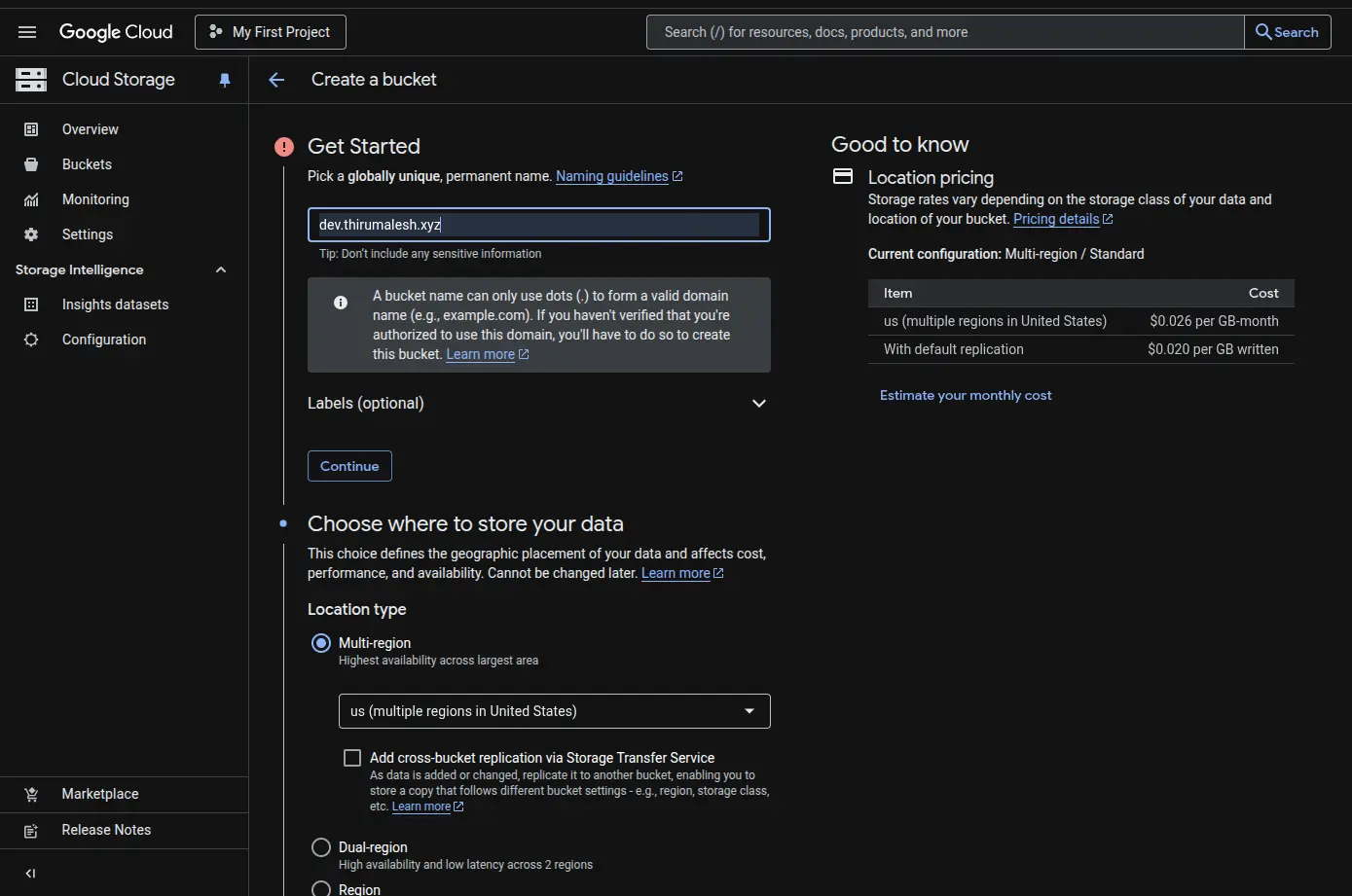
2. Create a Bucket
- Navigate to Cloud Storage > Buckets
- Click Create Bucket
- Choose a globally unique name, ideally your domain name (e.g. example.com).
3. Select Location Type
Regional or multi-regional. I used Multi-Region (e.g. asia-south1) for better availability.
4. Set Access Control
Choose Uniform Access Control (recommended for static sites).
5. Complete Bucket Creation
Click Create to finalize your bucket setup.
📂 Step 2 – Upload Your Website Files
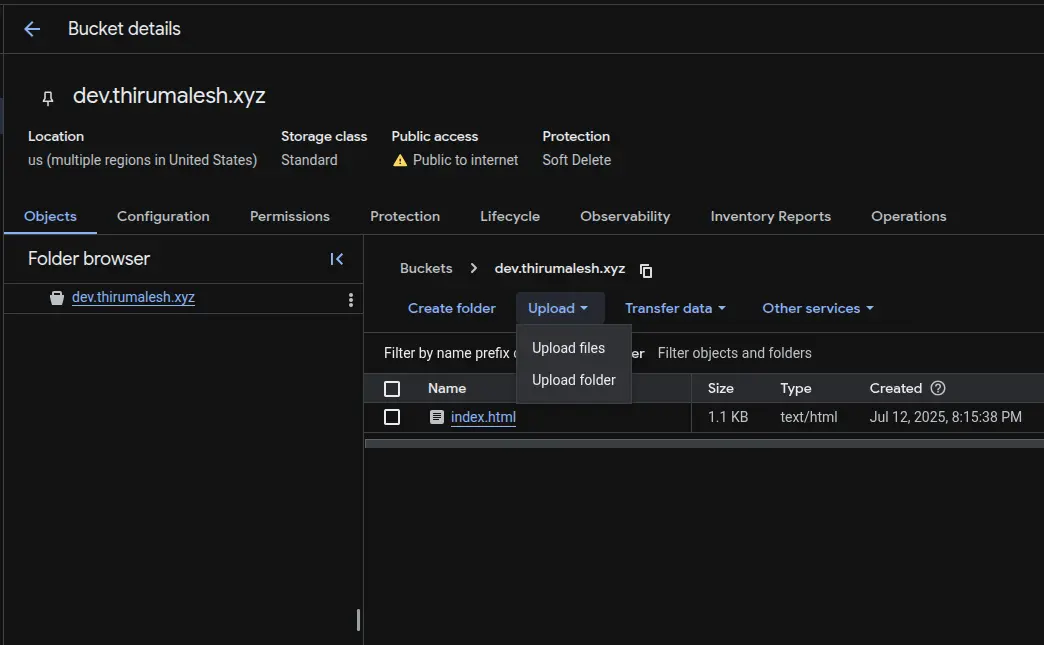
Next, upload your static files:
- Go to your bucket in Cloud Console
- Click Upload Files or Upload Folder
- Upload files like index.html, CSS, JS, images, etc.
🔓 Step 3 – Configure Bucket for Static Website Hosting
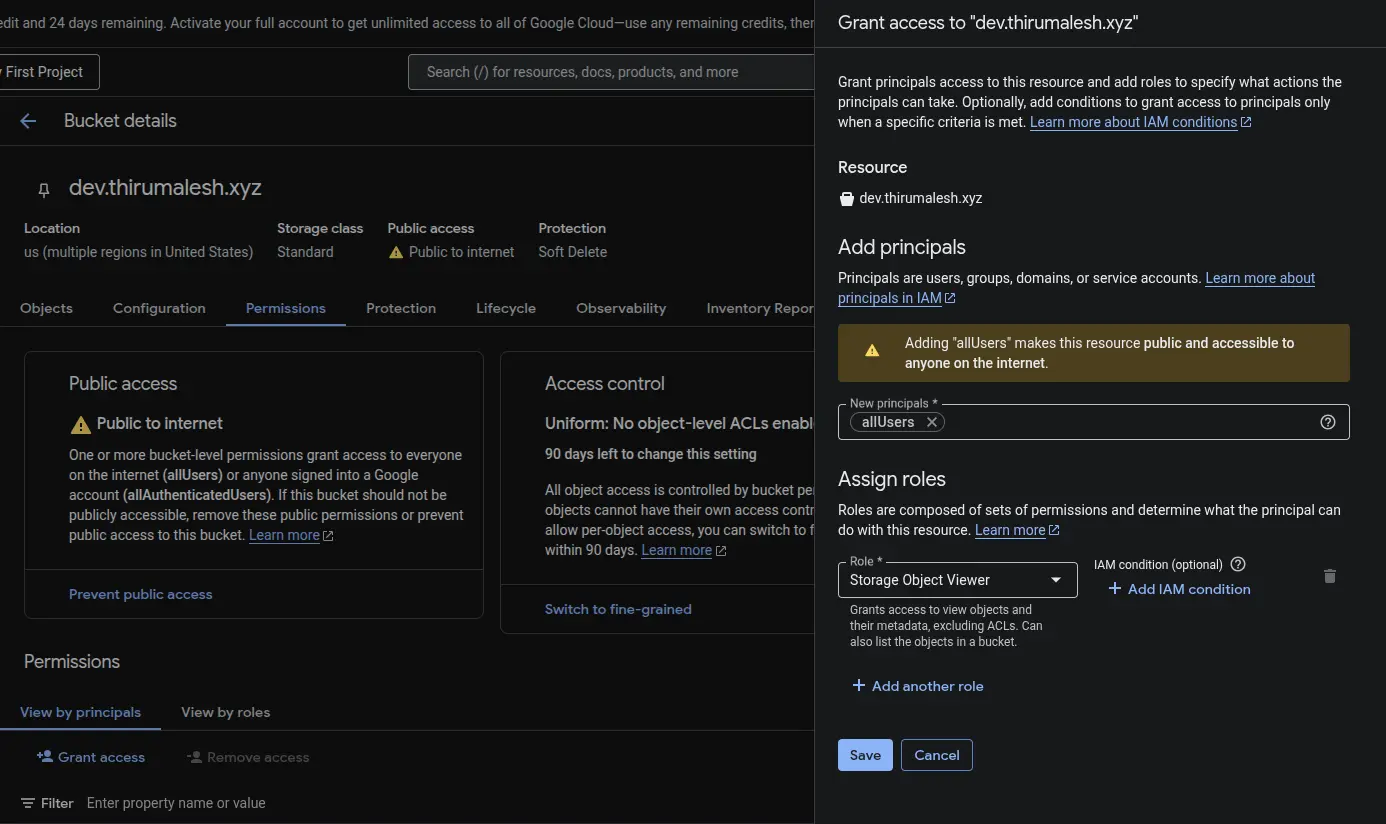
To make GCS serve your files as a website:
- Click into your bucket
- Go to Permissions and click Grant access
- Add principle as "allUsers" and assign role as "Storage Object Viewer"
- And save
🧪 Step 4 – Test Your Website
Find the public link to your bucket's index page:
https://storage.googleapis.com/YOUR_BUCKET_NAME/index.htmlOr if you're using the bucket's website endpoint:
http://YOUR_BUCKET_NAME.storage.googleapis.com/✅ At this stage, my link worked:dev.thirumalesh.xyz/...
🌐 Step 5: Setting Up Custom Domain with Load Balancer
Option 1 — Direct Domain Mapping (Simple)
Set up a load balancer to serve your static site with HTTPS:
✅ How It Works
- Your GCS bucket acts as the origin for your website
- You map your custom domain directly to Google's storage endpoint
c.storage.googleapis.com - Requests to your domain get routed to your bucket based on the bucket name matching your domain
For example:
https://storage.googleapis.com/www.example.com/index.htmlWhen using a custom domain, you'll want users to simply visit:
https://www.example.comSet the DNS CNAME Record
In your domain registrar's DNS settings, create a CNAME record:
Type: CNAME
Name: www or your subdomain
Value: c.storage.googleapis.com.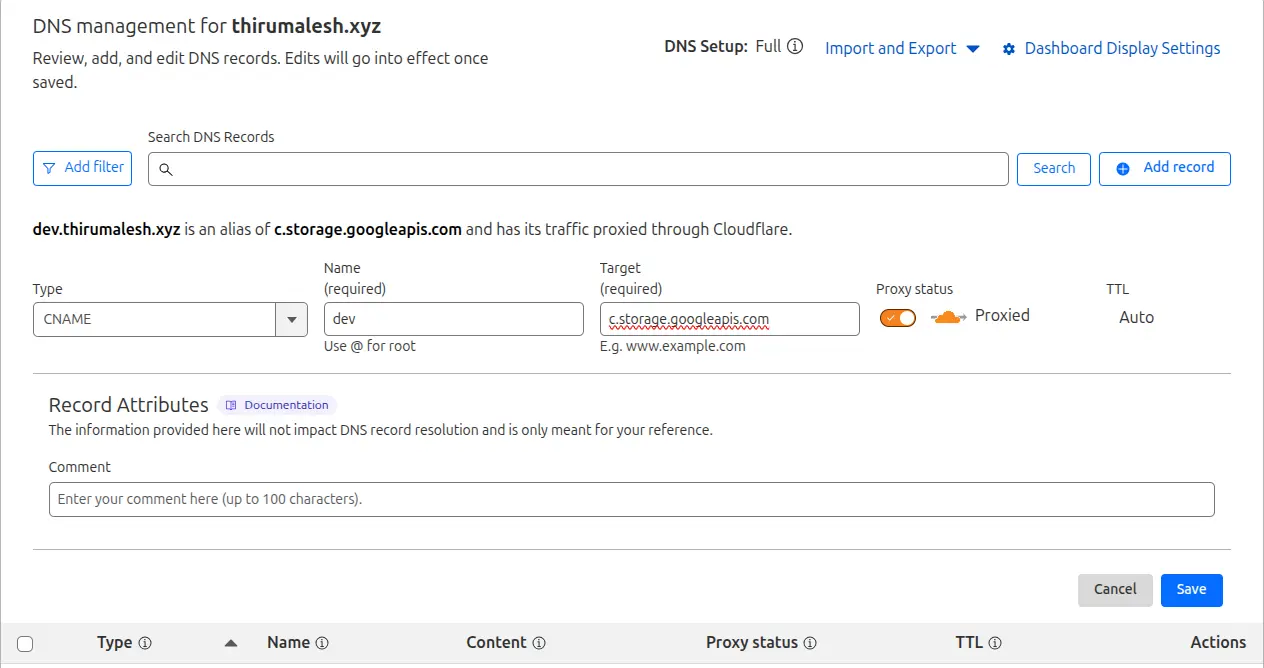
⚠️ Note on Root Domains
Many domain registrars don't support CNAME records at the root domain level (example.com). If you want to serve your root domain:
- Use a redirect service to forward example.com → www.example.com, OR
- Set up a load balancer (see Option 2 below)
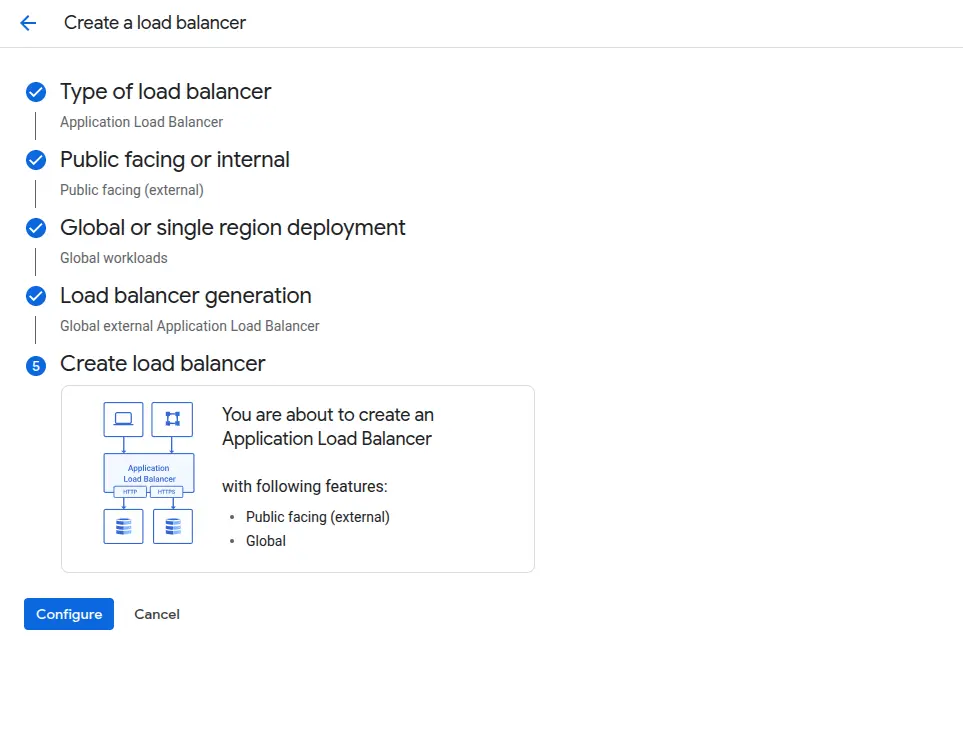
Option 2 — Connecting Your Domain via Google HTTPS Load Balancer (Advanced)
If you have more advanced requirements like:
- Serving a root domain without redirects
- Using a Google-managed SSL certificate
- Enabling Cloud CDN
- Custom routing rules
✅ Steps for Load Balancer Setup
Go to:
https://console.cloud.google.com/net-services/loadbalancing🔧 Frontend Configuration
- Name: static-site-frontend
- Protocol: HTTPS
- IP Version: IPv4
- IP Address: Ephemeral
- Port: 443
- Certificate: Google-managed SSL
🔧 Backend Configuration
- Click Create Backend Bucket
- Name: static-site-backend
- Select your GCS bucket
- Enable Cloud CDN (optional but recommended)
- Click Save
CI/CD Setup with GitHub Actions (Optional)
Automate deployments right to Cloud Storage:
name: Deploy to GCP

on:
  push:
    branches: [ main ]

jobs:
  deploy:
    runs-on: ubuntu-latest

    steps:
    - uses: actions/checkout@v3

    - id: auth
      uses: google-github-actions/auth@v1
      with:
        credentials_json: ${{ secrets.GCP_SA_KEY }}

    - name: Set up Cloud SDK
      uses: google-github-actions/setup-gcloud@v1

    - name: Deploy to GCS
      run: |
        gsutil -m rsync -r -d ./dist gs://yourdomain.com

    - name: Set cache headers
      run: |
        gsutil -m setmeta -h "Cache-Control:public, max-age=31536000" gs://yourdomain.com/**.css
        gsutil -m setmeta -h "Cache-Control:public, max-age=31536000" gs://yourdomain.com/**.js
🛠️ Troubleshooting Common Issues
🔍 Common Problems & Solutions
- 403 Forbidden: Check bucket permissions and IAM policies
- SSL Certificate not working: Verify domain ownership and DNS propagation
- 404 errors: Ensure index.html and 404.html are properly configured
- Slow loading: Enable Cloud CDN and check cache headers
- DNS issues: Verify DNS records and propagation time (up to 48 hours)
🔧 Useful Commands for Debugging
# Check bucket configuration
gsutil web get gs://yourdomain.com

# List bucket contents
gsutil ls -la gs://yourdomain.com

# Check SSL certificate status
gcloud compute ssl-certificates list

# Test DNS resolution
nslookup yourdomain.com
dig yourdomain.com
🎯 Conclusion
Hosting static websites on Google Cloud Platform provides a robust, scalable, and cost-effective solution for modern web applications. The combination of Cloud Storage, Cloud CDN, and managed SSL certificates creates a powerful hosting environment that can handle traffic at any scale.
Key benefits of this approach include:
- Global performance with automatic CDN
- Cost-effective pay-as-you-go pricing
- Automatic SSL certificate management
- High availability and reliability
- Easy CI/CD integration
Whether you're hosting a personal blog, portfolio, documentation site, or a single-page application, GCP's static hosting solution provides enterprise-grade infrastructure with minimal configuration and maintenance.